Fares Overview
One-way fares and passes are available for the subway, bus, Commuter Rail and ferry. Transfer rules depend on your pass type and how you pay.
Reduced fares are available for eligible customers. Children age 11 and under ride for free.
Standard One-Way Fares
Commuter Rail One-Way
with CharlieTicket or mTicket App
Price based on distance traveled
The MBTA also offers The RIDE, a paratransit service, for customers who are unable to use other modes.
Transfers
Subway and Bus
For Local Bus, Express Bus, Silver Line, and/or Subway, transfer up to two times and pay only the cost of the highest-priced service.
Commuter Rail and Ferry
Certain monthly Commuter Rail passes printed on a CharlieTicket include unlimited transfers to any mode. Single-ride Commuter Rail and ferry tickets generally do not include free transfers.
Note: Transfers are not available with store value CharlieTickets or cash payments.
Most Common Passes
Please note, 1-day and 7-day passes purchased on CharlieTickets and mTicket are valid from the date and time of purchase. Those purchased on CharlieCards are valid from the first tap into a subway station.
For monthly passes, subway and bus and mTicket passes must be purchased by the 15th of the month prior. Printed Commuter Rail and ferry passes must be ordered between the 15th and 22nd.
Refunds are not offered for any of these passes.
Subway and Bus Passes
-
1-Day Pass
-
$11.00
Unlimited travel for 24 hours
CharlieCard and CharlieTicket valid on:
Subway
Local Bus
Silver Line
Commuter Rail Zone 1A Pass on CharlieTicket also valid on:- Commuter Rail Zone 1A
- Charlestown Ferry
- East Boston Ferry (seasonal)
-
7-Day Pass
-
$22.50
Unlimited travel for 7 days
CharlieCard and CharlieTicket valid on:
Subway
Local Bus
Silver Line
Commuter Rail Zone 1A Pass on CharlieTicket also valid on:- Commuter Rail Zone 1A
- Charlestown Ferry
- East Boston Ferry (seasonal)
-
Monthly LinkPass
-
$90.00
Unlimited travel for the remainder of the month
CharlieCard and CharlieTicket valid on:
Subway
Local Bus
Silver Line
CharlieTicket also valid on:- Commuter Rail Zone 1A
- Charlestown Ferry
- East Boston Ferry
-
Monthly Local Bus Pass
-
$55.00
Unlimited travel for the remainder of the month
Valid on:
Local Bus
SL4 and SL5
Note: Monthly LinkPasses are not valid on Express buses. To pay your Express Bus fare, load your CharlieCard or CharlieTicket with an Express Bus pass or stored cash value.
Auto-pay Monthly Passes
Sign up for Auto-pay so you never have to worry about reloading your CharlieCard again. Signing up is quick and easy, and your pass renews automatically each month.
Learn more about Auto-pay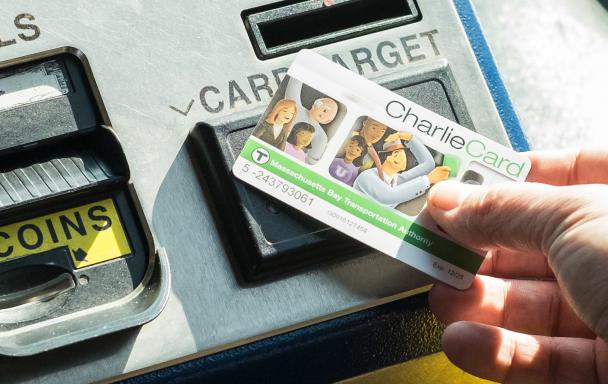
Commuter Rail Passes
Each Commuter Rail station is located in a fare zone, from 1A-10. Your Commuter Rail fare depends on which zones your boarding and exiting stations are located in. Find your fare using our trip planner or zone maps.
-
Monthly Commuter Rail Pass
CharlieTicket -
$90.00 – $426.00
Unlimited travel for 1 calendar month
Valid on:
- Commuter Rail, up to designated pass zone
- Subway
- Bus
- Silver Line
- Charlestown Ferry
- East Boston Ferry (seasonal)
- Hingham/Hull Ferry with Zone 6 passes and up
- Zone 1A passes not valid on Express Bus
- Interzone passes not valid on subway, Express Bus, and ferry
-
Monthly Commuter Rail Pass
mTicket -
$80.00 – $416.00
Unlimited travel for 1 calendar month
Valid on:
Commuter Rail, up to designated pass zone
All MBTA ferriesNo transfers to other modes
$10 Commuter Rail Weekends
Take unlimited Commuter Rail trips on Saturdays, Sundays and select holidays for just $10.
Learn more about weekend passes
Ferry Passes
Ferry fares depend on your route. Use our trip planner to plan your route and calculate your fare.
-
Monthly Passes
on CharlieTicket -
$90.00 – $329.00
Unlimited travel for 1 calendar month
LinkPass valid on:
Charlestown Ferry
East Boston Ferry (seasonal)
Subway
Silver Line
Bus
Commuter Rail Zone 1AHingham/Hull Commuter Ferry pass valid on:
All MBTA ferry routes
Subway
Silver Line
Bus
Commuter Rail Zones 1A-5 -
Ferry Monthly Pass
mTicket -
$80.00 – $319.00
Unlimited travel for 1 calendar month
Visiting Boston?
We've put together a guide with everything visitors need to know about riding the MBTA.
Check out our visitor guide
Ways to Pay
The right way to pay depends on which modes you want to take, and how often.
You can also pay in cash on buses and trolleys at street-level stops.
-
CharlieCard
-
Best for regular bus and subway riders
Online card managementValid on:
Subway
Bus
Silver Line -
CharlieTicket
-
Best for visitors, Commuter Rail, and ferry riders
Purchase at any subway station1-Day Passes, 7-Day Passes, and cash-value CharlieTickets valid on:
Subway
Bus
Silver LineMonthly LinkPass CharlieTickets valid on:
- Subway
- Bus
- Silver Line
- Commuter Rail Zone 1A
- Charlestown Ferry
- East Boston Ferry (seasonal)
-
mTicket
-
Best for Commuter Rail and ferry riders
Easy online purchase and ticket scan
Discount on monthly passes
iPhone and Android appValid on:
Commuter Rail
Ferry
Note: At new Green Line Extension (GLX) stations, you will need to validate your fare at street-level fare vending machines.
CharlieCard
CharlieCards are reusable plastic cards that can be loaded with cash value or 1-Day, 7-Day, or monthly passes.
Learn more about CharlieCards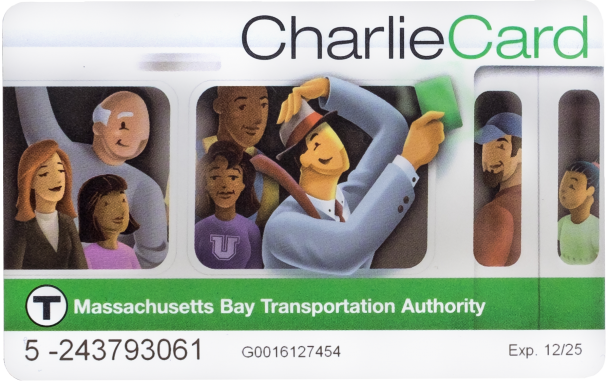
Reduced Fares
MBTA offers discounted fares for people 65 and older, people with disabilities, middle and high school students, and low-income adults. Some customers, such as people who are blind or have low vision and children 11 and under, ride for free.
The RIDE
The RIDE is a paratransit service for people who are unable to use the MBTA's other modes.
ADA Ride One-Way
Depends on location of pick up and drop off as well as booking time.
Depends on location of pick up and drop off as well as booking time.
Premium Ride One-Way
Depends on location of pick up and drop off as well as booking time.
Depends on location of pick up and drop off as well as booking time.
Institutional Sales
Reduced Fares
Some customers are eligible for reduced fares or can ride the T for free.
Use Your EBT Card to Pay Your Fare
You can use your EBT card to load value or passes onto CharlieCards and CharlieTickets.